If you’re craving a workspace that feels calm, looks clean, and keeps your mind on the work that matters, a minimalist home office setup can help you get there. This guide translates the idea of a minimalist home office setup into practical steps you can follow today, from measuring your room and choosing the right desk height to taming cables and creating a weekly reset routine. You’ll get example layouts, gear checklists at different budget levels, and realistic advice for small apartments, shared spaces, and multipurpose rooms.
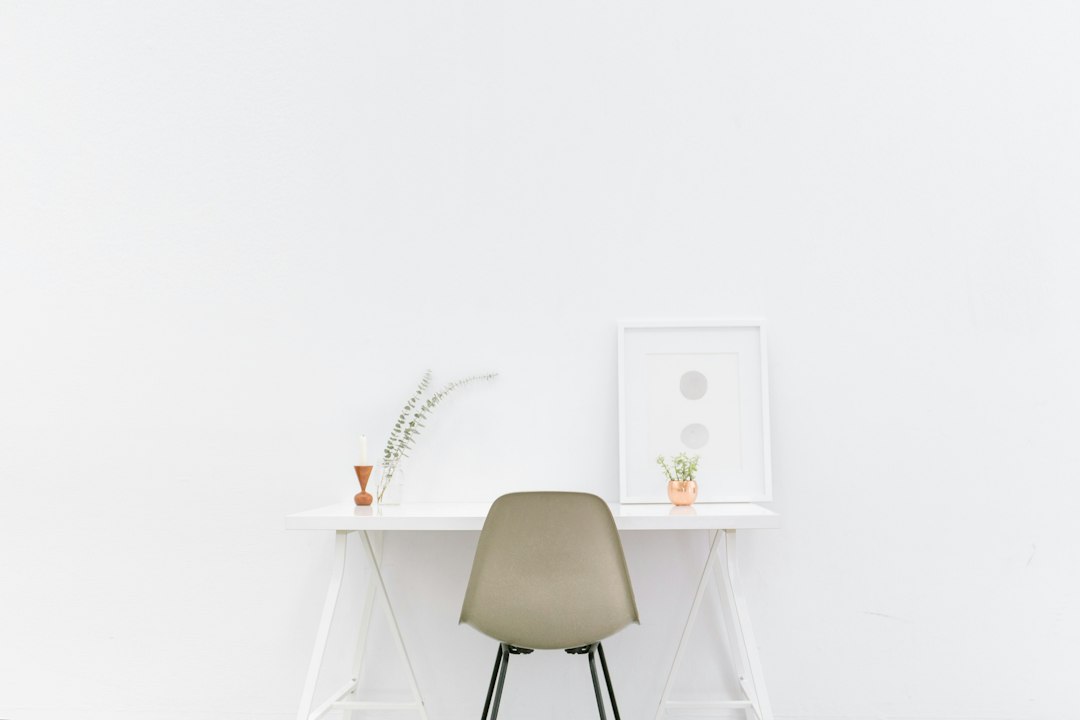
minimalist home office setup: the core philosophy
Minimalism in a home office is not about owning the fewest objects or forcing a sterile aesthetic. It’s about intentionality. Every item you allow into the room earns its place because it supports your work with as little friction and distraction as possible. That intentionality shows up in three dimensions: space, tools, and habits.
Space is the canvas: a clear desktop, a right-sized desk, proper lighting, and a chair that fits your body. Tools are the instruments: a dependable computer, a single primary display, a keyboard that feels good to type on, and just enough accessories to keep you productive without clutter. Habits are the human layer: how you sit, how you plan, how you maintain, and how you reset your space at the end of the day.
When people think “minimal,” they sometimes imagine a strict aesthetic that only works for large rooms and big budgets. In reality, the clean look emerges from constraints, not from buying expensive furniture. A two-square-meter corner can be just as serene as a whole study if you choose compact pieces, keep one cable plan, and remove anything that does not serve the work. The goal is a room that lowers cognitive load and lets you move from idea to execution quickly.
Because minimalism prioritizes function, you’ll see this guide emphasize measurements, ergonomics, lighting angles, and simple routines over decorative objects. If a plant helps you focus, include it. If a second monitor genuinely helps your work, install one. Minimalism here means less, but better; and better means supportive of your body and your attention.
Plan your space: measuring, mapping, and choosing a layout
Before buying anything, measure the room and the furniture you already own. Note wall lengths, window positions, outlets, and door swing arcs. Record ceiling height, because tall ceilings allow taller shelving or a wall-mounted light arm that keeps the desk clear. Use masking tape to mark a desk footprint on the floor and test chair movement—can you roll back without hitting a wall or a bed? With measurements in hand, you can map realistic layouts instead of guessing.
For a small rectangular room or a studio apartment, try these three proven layouts:
- Wall-facing desk: The desk faces a plain wall. This is the most compact layout and reduces visual distractions. It works especially well with wall-mounted lighting and a single monitor on an arm. Keep the monitor centered and use a 24–27 inch size to control depth.
- Window-side L: Place the desk perpendicular to a window so natural light falls from the side, not directly behind or in front of you. This avoids screen glare and keeps your eyes relaxed. An L-shaped surface can be improvised with a small side table that holds a printer or notebook stack.
- Room-divider island: In an open plan or shared space, position the desk like an island to visually separate “work” from “living.” Run a single power strip under the desk via a floor cable cover. Use a low shelf behind the chair as a soft divider and storage.
Mind the walking paths. Leave at least 80–90 cm behind the chair for movement. Avoid layouts that force you to sidestep around the desk to exit the room. If you must work in a bedroom, place the desk as far from the bed as possible and face away from it to avoid cross-cues of rest and work. A minimalist layout optimizes for frictionless entry and exit, natural light alignment, and reachability of core items.
Make a quick sketch of your chosen layout. Draw power outlets and the route of your main cable run. It’s helpful to set a simple rule like “All cables run along the desk’s right underside, down the right table leg, and into one surge-protected strip.” A single cable plan prevents drift into spaghetti over time.
Desks, chairs, and surfaces: choosing furniture that fits
Furniture is the physical backbone of your setup. The wrong desk height, a wobbly tabletop, or a chair that doesn’t support your posture will add friction and fatigue. The minimalist approach is to choose fewer pieces, each dimensioned to your body and space.
Desk dimensions and materials
For most people, a desk height around 72–75 cm is comfortable for typing with elbows at roughly 90 degrees. If you’re shorter, consider a desk with adjustable legs or a keyboard tray to lower typing height without shrinking the whole desk. In small rooms, a 120×60 cm top fits almost anywhere while still accommodating a 24–27 inch monitor. If you like more spreading space, 140–160 cm width covers a laptop stand, a single monitor, and a notebook comfortably.
Pick a top material that is durable, easy to clean, and visually calm: laminate, bamboo, or sealed wood. Avoid highly glossy tops that bounce light at your eyes. If the desk wobbles, reinforce with a crossbar or thicker legs. Minimalism does not mean fragile; it means sturdy enough to fade into the background.
Seating that respects your body
The best chair is the one you can stay in without noticing it. Look for adjustable seat height, back tilt, and lumbar support. If budget is tight, pair a simpler chair with a firm seat cushion and a small lumbar pillow to maintain the natural curve of your spine. Your feet should rest flat on the floor or a footrest. Knees should be at or slightly below hip level. Armrests, if present, should let your shoulders stay relaxed, not shrugged.
Standing desks can work for some people, but standing all day is not inherently better. A good pattern is to alternate: sit for focused typing, stand for short calls or whiteboarding. If you don’t buy a full standing desk, a desk riser can give occasional standing time without a full investment. Minimalism here means the least complexity that helps you move and stay comfortable.
Ergonomics: screens, input devices, and posture that reduce strain
Ergonomics is the discipline of fitting the job to the person. In a home office, this means arranging your monitor, keyboard, mouse, and chair so your body stays in neutral positions. It also means creating habits to reset posture and break up static holding patterns.
Monitor height and distance: Top of the screen at or slightly below eye level helps you avoid neck craning. The screen should sit roughly an arm’s length away. If you use a laptop, add a stand to raise the screen and a separate keyboard and mouse for correct hand height. A single, crisp monitor between 24 and 27 inches is the minimalist sweet spot; larger screens often force deep desks and add visual load.
Keyboard and mouse: Place the keyboard so your elbows rest near 90 degrees, shoulders relaxed, wrists neutral (not bent up or down). A compact keyboard without a numpad reduces reach to the mouse. Choose a mouse that fits your hand without forcing finger extension. If you prefer trackpads, ensure the surface is stable and at the same height as the keyboard.
Posture cues: Your ears over shoulders, shoulders over hips. Imagine a gentle thread pulling the crown of your head up. Keep forearms parallel to the floor. If you feel yourself leaning toward the screen, it’s often a sign the monitor is too far or too low.
Micro-breaks: Every 30–45 minutes, look away from the screen to a distant object for 20–30 seconds. Stand up hourly to change load on your joints. Minimalism favors rhythm over gadgets; a simple timer or calendar nudge can be enough to keep you moving.
Lighting and acoustics: clean visuals, calmer sound
Good lighting makes a room feel larger and keeps your eyes comfortable. Poor lighting creates glare, harsh shadows, and fatigue. The minimalist principle is layered light with minimal fixtures, placed intentionally.
Natural light: Side-lighting from a window is ideal—place the desk so the window sits to your left or right. If light hits the screen directly, add a thin curtain or a blind that diffuses. If the window is behind you, you’ll likely see reflections; behind the screen, your face may be in shadow on video calls.
Task and ambient light: Combine a neutral task lamp (4000–5000 K) that illuminates the desk without shining into your eyes with a soft ambient source that fills the room. A wall-mounted arm lamp or a clamp lamp clears desk space and makes cable routing simpler. Avoid intense “spotlight” beams that create hot spots on glossy desks.
Acoustics: Sound matters, especially in shared homes. Soft furnishings like curtains, a small rug, or a wall-mounted cork board reduce echo. If background noise distracts, a simple pair of comfortable over-ear headphones can provide consistent sound without adding visual clutter to the desk. Keep microphones on short arms or stands close to your mouth for clarity on calls.
Cable management and power: one plan to rule all wires
Visual noise often comes from unmanaged cables. A minimalist home office lives or dies by a single, simple cable plan. Decide where power enters the desk, how it’s distributed, and how cables are bundled.
Build a power spine: Mount a surge-protected power strip under the desk near the leg that’s closest to the wall outlet. Use a short, heavy-duty extension if the outlet is far. All devices plug into the strip, not into wall outlets around the room. This keeps the cable tree contained and easier to move if you rearrange.
Route and bundle: Use adhesive cable clips under the desk to route each cable along the same path. A single braided sleeve or a few hook-and-loop ties gather the run down the back of one desk leg. Label both ends of each cable with simple tags—future you will thank you.
Wireless where it counts: You don’t need to go fully wireless. A wired keyboard and mouse are fine if they reduce charging management. But consider a wireless headset for calls so you can stand and stretch without tugging on cords. The goal is reliability and clarity, not a lab experiment in zero cables.
Digital minimalism: software, settings, and workflows that reduce friction
Minimalism is as much about the screen as the furniture. Digital clutter—notifications, redundant apps, overlapping tools—can fragment attention. A clean digital workflow uses a few well-chosen tools and consistent routines.
Pick a small stack: Choose one note system, one task manager, one calendar, one cloud storage. If your job requires different tools, separate “work stack” and “personal stack” profiles to keep contexts clean. Use folders sparingly and rely on search; keep a single “inbox” for incoming files to process daily.
Quiet the noise: Turn off non-essential notifications. Batch email checks two or three times per day if your role allows. Group messaging can stay open, but mute channels that do not relate to your current project. Set your Do Not Disturb schedule for deep work blocks and publish it to your team so expectations are clear.
Automate routine steps: Little automations go a long way. Examples: a desktop shortcut that launches your core apps in one click; a macro that renames and files screenshots into a single folder; a browser profile that opens only the tabs you actually need. Automations should simplify, not add overhead; start with what you repeat more than twice a day.
Visual hygiene: Keep a calm wallpaper. Remove desktop icons. Limit your color palette for highlights in note-taking apps. Use a consistent naming scheme for files. It’s easier to stay organized when the screen doesn’t shout at you.
Aesthetics for focus: color, texture, and a touch of nature
Minimal aesthetics aren’t about severity; they’re about balance. The palette supports attention, and textures soften the scene. Think of the room like a library: quiet colors, natural materials, and one or two personal artifacts that make the space yours without turning into clutter.
Color: Neutral wall colors (warm whites, light grays, soft beiges) bounce light evenly and make small rooms feel larger. Black or very dark palettes can look dramatic but may reduce perceived space and show dust quickly. Use accent color sparingly—perhaps a single notebook, a framed print, or a plant pot.
Texture: Wood, cork, and woven textiles add warmth and reduce sterile vibes. A small textured rug can also improve acoustics. Avoid complex patterns that draw the eye away from the work surface. If you add a pinboard, keep it intentional: reference images for the current project, not a permanent collage.
Nature: A small, easy-care plant adds life and softens edges. Place it where it won’t block airflow around electronics. Keep watering tools minimal; a small bottle lives in the drawer so the desk stays clear.
Budget tiers and shopping checklists
You don’t need a large budget to create a calm, efficient space. Below are three budget levels with shopping checklists. Use them as templates—swap items based on what you already own. Focus spending where it creates the most impact: chair comfort, monitor clarity, and lighting consistency.
Essentials-only (lean budget)
- Compact desk (120×60 cm) or a sturdy table you already own
- Supportive chair (add a seat cushion and small lumbar pillow if needed)
- Laptop on a stand or a 24–27 inch external monitor
- External keyboard and simple mouse or trackpad
- Clamp or wall-mounted task lamp with neutral light
- Surge-protected power strip mounted under desk
- Hook-and-loop ties and adhesive cable clips
Balanced value (mid budget)
- Stable desk with adjustable legs; 140×70 cm top for extra space
- Ergonomic chair with adjustable lumbar and armrests
- 27 inch monitor with a monitor arm for height and depth control
- Compact mechanical keyboard; ergonomic mouse
- Ambient floor lamp + task lamp combo for layered light
- Under-desk cable tray, braided sleeves, and labeled cables
- Simple bookshelf or wall-mounted shelf for active project materials
Premium but restrained (higher budget)
- Quality sit-stand desk with quiet, reliable motors
- High-end ergonomic chair tuned to your body
- Calibrated 27–32 inch monitor (only if your work benefits from size)
- Monitor light bar to illuminate the desk without screen glare
- Noise-dampening panels or a cork wall section
- Docking station to keep a single cable to your laptop
- Custom cable routing with under-desk raceways and grommets
Tip: Don’t buy everything at once. Live with the baseline for a week or two. Notice what still causes friction. Spend next on the single upgrade that removes the most friction, not on matching accessories. Minimalism respects momentum and reality more than checklists.
Storage and paper: keep what serves today
A minimalist home office doesn’t abolish storage; it tightens the scope. Keep today’s project and a small archive of essential documents; move everything else out of the room. A single drawer unit or a low shelf should be enough for most home offices.
Active vs. archive: Use one magazine file or tray for active paper. At the end of each week, scan or file what you need and recycle the rest. Archive only what you’re legally required to keep or truly reference. Label folders in plain language so you don’t hesitate to file.
Open vs. closed storage: Open shelves invite clutter if you don’t curate them. If you must use open shelves, limit each to one or two items. Closed storage (drawers, boxes with lids) keeps dust and visual noise down. Keep a single small box for cables and adapters and label it.
Maintenance rhythms: daily tidy, weekly reset, seasonal audit
Spaces drift. The only way to stay minimal is to make maintenance easier than neglect. Simple rhythms keep the room friendly without becoming a second job.
- Daily tidy: End your workday with a 3–5 minute sweep. Put away tools, coil a loose cable, empty your mug, and wipe the surface. Leave your desk set for the first task of tomorrow.
- Weekly reset: Once per week, clear the desktop entirely. Dust the monitor and shelves, empty the trash, and run your eyes over your cable run to spot any drift. Update your task list and archive or delete completed project notes so your digital desk matches your physical one.
- Seasonal audit: Every three months, reassess. Did a device migrate onto the desk without permission? Is a drawer full of “just in case” gear? Remove what no longer serves. Check screws on chair and desk; tighten anything loose. Replace worn ties or failing clips.
These rhythms are light by design. The room returns to neutral quickly, which lowers friction to start the next session. You’ll also spot small issues early—like a cable snagging against a sharp edge—before they become frustrations.
Common pitfalls and how to avoid them
Minimal setups go wrong in predictable ways. Here’s how to sidestep the common traps:
- Buying to solve discipline: Tools can help, but a new monitor arm won’t replace a weekly reset. Start with habits, then refine tools.
- Going too small: A 100 cm desk with a giant monitor often results in cramped depth and neck strain. Balance dimensions: if the top is shallow, keep the monitor modest.
- Ignoring light: Many tidy rooms feel harsh because of a single, bright overhead light. Layer task and ambient sources to soften the scene.
- All-white syndrome: A white-on-white-on-white palette can look clean in photos yet feel cold. Introduce texture or a small dose of warm material like wood or cork.
- Letting cables drift: A plan once is not a plan forever. Include cable checks in your weekly reset.
- Over-optimizing: Changing gear every month prevents you from noticing what actually helps. Stabilize for a season, then adjust.
Example setups for different constraints
To make the ideas concrete, here are three example setups you can adapt to your space and budget:
Studio apartment corner
Layout: Wall-facing desk to minimize footprint; monitor arm to pull the screen off the surface; clamp lamp to free space; single power strip under the desk, cables down the right leg into a floor cover.
Gear: 120×60 cm desk, compact ergonomic chair, 24 inch monitor on an arm, laptop on a stand, compact keyboard and mouse, small two-drawer unit for active documents.
Why it works: It respects the room’s dual purpose by keeping the visual field calm and the cable run contained. Everything you need stays within reach without exploding into the living area.
Shared living room island
Layout: Desk used as a subtle room divider, with a low shelf behind the chair for storage and separation. A floor lamp provides ambient light; a task lamp focuses on the desk.
Gear: 140×70 cm desk, reliable chair with adjustable lumbar, 27 inch monitor on a low-profile stand, dock for one-cable connection to the laptop, braided cable sleeve down a rear leg.
Why it works: The island layout signals “work zone” in a shared space, and the cable plan keeps cords discreet. Layered lighting keeps the scene flexible—bright for work sessions, soft for evenings.
Dedicated small room
Layout: Window-side desk to bring in side light without glare. Wall-mounted shelf over the monitor holds a plant and one framed print. Cork board on the wall to the side shows only current project references.
Gear: 160×70 cm sit-stand desk, supportive chair tuned to your height, 27 inch monitor, compact mechanical keyboard, ergonomic mouse, under-desk tray, labeled cables, ambient lamp in the corner.
Why it works: The sit-stand desk adds movement. Everything has a home, and shelving prevents the desktop from becoming storage. The color palette stays neutral with one warm texture.
Quick-start checklist
- Measure your room: walls, windows, outlets, ceiling height, and door swing
- Choose a layout: wall-facing, window-side L, or island
- Pick a desk size that fits: 120×60 cm for tight spaces, 140–160×70 cm for comfort
- Select a supportive chair; add cushions if needed
- Set monitor height to eye level and an arm’s length away
- Add a separate keyboard and mouse for laptops
- Layer light: task lamp plus ambient source
- Create one cable plan: power strip under the desk, routed and bundled
- Simplify your digital stack; mute non-essential notifications
- Adopt rhythms: daily tidy, weekly reset, seasonal audit
If you want more practical living ideas, the Lifeinsy blog publishes hands-on guides and checklists that pair well with the approaches in this article.
FAQs to reduce second-guessing
Do I need a standing desk to be minimal? No. Alternating positions matters more than the mechanism. A stable sitting desk plus a few standing moments—calls, stretches, brief reviews—can support your body well.
Is a second monitor anti-minimalist? Not by default. If your work genuinely benefits—compare documents side by side, review spreadsheets, edit media—add a second monitor. Keep it sized appropriately for your desk depth, and plan cables in the same route.
How many drawers should I have? As few as you can live with, as many as you need to avoid surface clutter. One small drawer unit or a single shelf is often enough when you scan documents weekly and keep an active tray.
What about personal items? Include one or two that bring you calm or meaning: a small photo, a plant, a single book on the desk. Rotate items seasonally so the desk stays fresh without filling up.
How long does a full reset take? The daily tidy is minutes; the weekly reset may take 10–20 minutes depending on dust and paper. The seasonal audit is your once-per-quarter tune-up—lightweight and focused on removing drift.
As your needs evolve, revisit the basics: measure, choose the simplest layout that serves your current projects, keep one cable plan, and refine your digital stack. The result is not a museum piece but a flexible room that supports your best work without shouting for attention.